






You’ve probably seen a string like this buried inside HTML, CSS, JSON, or an API response:
SGVsbG8sIHdvcmxkIQ==
It looks like random characters. It isn’t.
That’s Base64, a way to turn binary data or text into a string made from a limited set of characters. Developers use it when they need to move data through places that expect text.
And yes, that includes images.
So, what exactly is Base64?
Base64 takes data and converts it into a text representation using 64 characters, mainly letters, numbers, +, and /. An = at the end can appear as padding.
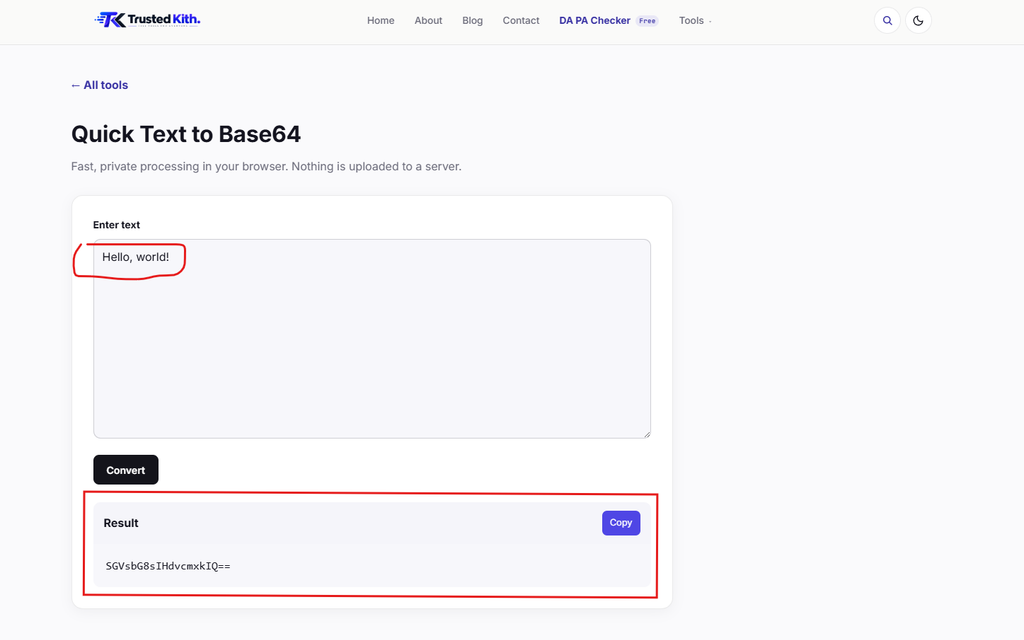
For example, the text
Hello, world!
becomes:
SGVsbG8sIHdvcmxkIQ==
There’s one detail worth remembering: Base64 is encoding, not encryption.
Anyone who has the Base64 string can decode it. Putting a password into Base64 doesn’t make the password secret.
Why put an image inside HTML or CSS?
This is where Base64 gets more interesting.
Normally, an image might live in its own file:
<img src="/images/logo.png" alt="Logo">
The browser requests logo.png, downloads it, and displays it.
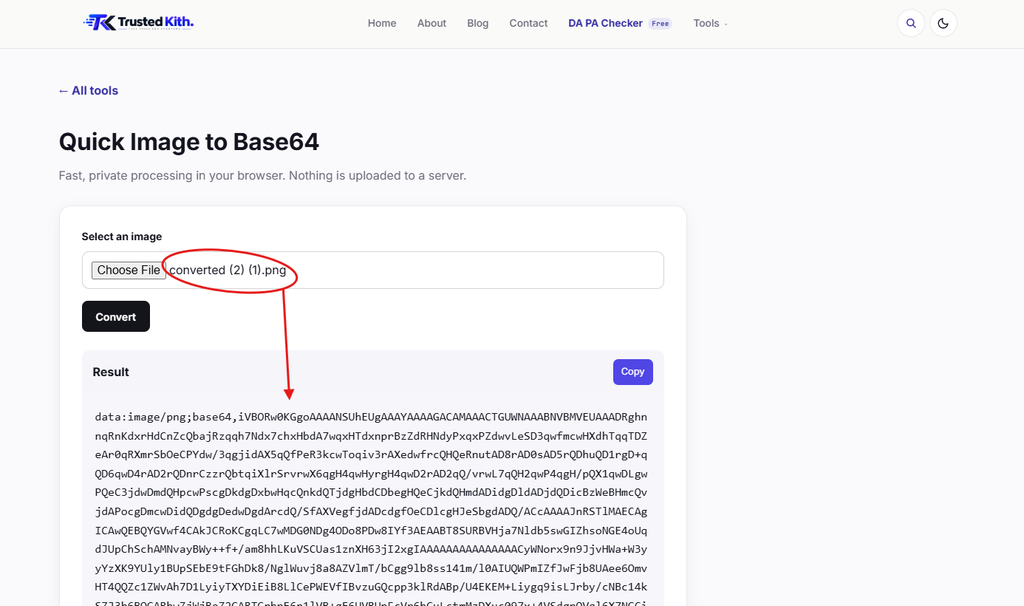
You can also turn that image into Base64 and put the data directly into the page:
<img
  src="data:image/png;base64,iVBORw0KGgoAAAANSUhEUg..."
  alt="Logo"
>
The browser reads the data: URL and can display the image without fetching a separate image file.
The same idea works in CSS:
.icon {
  background-image: url("data:image/png;base64,iVBORw0KGgoAAAANSUhEUg...");
}
This can be handy for small assets such as tiny icons, simple backgrounds, or images that are always needed with a particular page.
Why developers use Base64 for small images
Every separate resource can create some amount of request and processing overhead.
If a page needs 20 tiny images, keeping every image as a separate file means the browser has to deal with 20 separate resources. Putting some tiny assets directly into CSS or HTML can reduce the number of files involved.
That can make sense for an icon that’s only a few hundred bytes.
But there’s a catch.
Base64 makes files bigger
Base64 isn’t a compression format.
In fact, Base64 usually increases the size of the encoded data by roughly 33% before other compression is considered.
A 30 KB binary image can therefore become roughly 40 KB as Base64 data.
And the Base64 string has to live somewhere: inside HTML, CSS, JSON, an email, or another text-based document. A page that contains several large encoded images can get bloated quickly.
For a tiny icon, that extra size might be irrelevant.
For a 500 KB photograph, embedding the whole thing into your HTML is usually a bad trade.
The caching problem
Separate image files have another useful property: browsers can cache them independently.
Suppose your website has a logo used on 50 pages. If the logo is a normal image file, the browser can download it once and reuse the cached file.
If you paste the same Base64 image into every HTML document, the image data gets repeated inside each page.
That can increase the amount of HTML the browser has to download and parse.
So Base64 can reduce separate requests while increasing the size of the document carrying the data. You have to look at the whole page, not just the request count.
What about page load speed?
There’s no universal “Base64 is faster” rule.
For very small assets, embedding can be useful because the browser already has the HTML or CSS and doesn’t need another resource for that tiny file.
For larger assets, the size increase can become more expensive. You also lose some of the benefits of keeping the asset in its own cacheable file.
HTTP compression changes the numbers too. HTML, CSS, and Base64 text can be compressed during transfer, so the actual network cost isn’t simply “33% larger, therefore 33% slower.”
The right choice depends on the asset, the page, caching, compression, and how often the asset gets reused.
What about credentials?
You might also see Base64 around authentication data, especially in HTTP-related code.
For example, HTTP Basic Authentication encodes a username and password combination into Base64 before sending it in an Authorization header.
The important part is that Base64 doesn’t protect the credentials.
If you’re handling passwords, API keys, tokens, or other secrets, use the security mechanism designed for that job. Encryption, hashing, TLS, and Base64 solve different problems.
A Base64 string can be decoded in seconds.
When Base64 makes sense
I like Base64 when the data is small, self-contained, and closely tied to the document using it.
Good candidates include:
- Tiny icons or UI images
- Small SVG or image data embedded in CSS
- Data that needs to travel through a text-only format
- Small test fixtures and development examples
- Certain API or email formats that require encoded binary data
For a tiny asset that would otherwise need its own request, Base64 can be perfectly reasonable.
When I’d keep the file separate
Use a normal image file when the asset is large, reused across many pages, or needs independent caching.
A photo, hero image, product image, or large illustration usually belongs in its own file.
Modern image formats such as WebP and AVIF can also give you much better compression than taking a large image and converting it into a longer Base64 string.
And if you’re dealing with dozens of images, stuffing them all into one CSS file can turn that CSS into a monster. Debugging it later won’t be fun.
A quick rule of thumb
Think about Base64 as a packaging trick.
You take binary data and squeeze its bytes into a text-friendly representation. That makes the data easier to place inside HTML, CSS, JSON, headers, and other text-based formats.
The tradeoff is size.
Small asset + self-contained document = Base64 can make sense.
Large asset + repeated use + caching matters = keep the file separate.
And if you’re working with text, you can test the conversion quickly with Quick Text to Base64 and decode the result with Quick Base64 to Text.
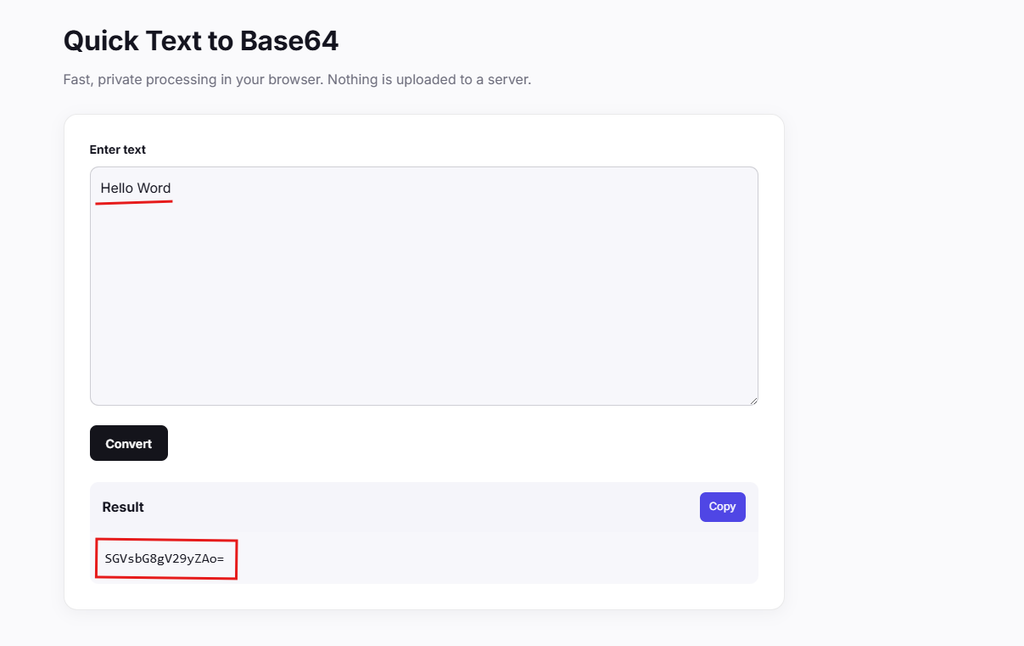
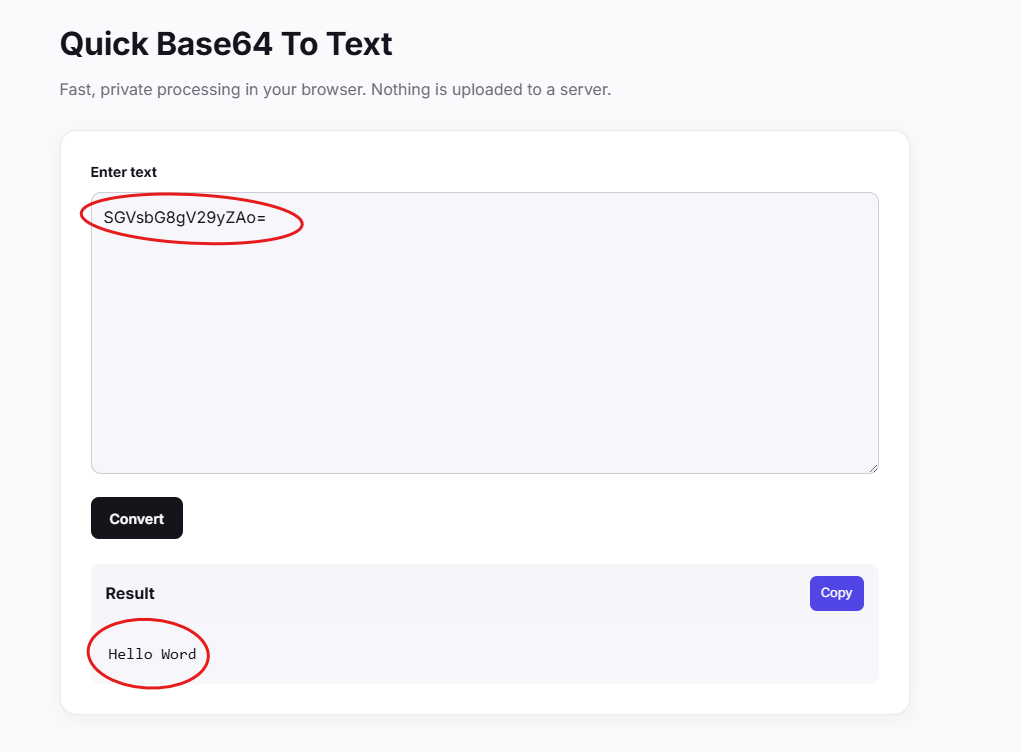
Base64 is simple once you see what it actually does. It changes the representation of your data so text-based systems can carry it. That’s the whole trick.